Creating polished screenshots for documentation, marketing pitch decks, Product Hunt launches, and bug reports usually requires multiple graphic design tools. OmniTool Hub's Screenshot Studio combines direct browser screen capture, photorealistic OS window frames (macOS, Windows 11, Chrome), vector arrows, numbered step badges, and destructive redaction into one client-side canvas.
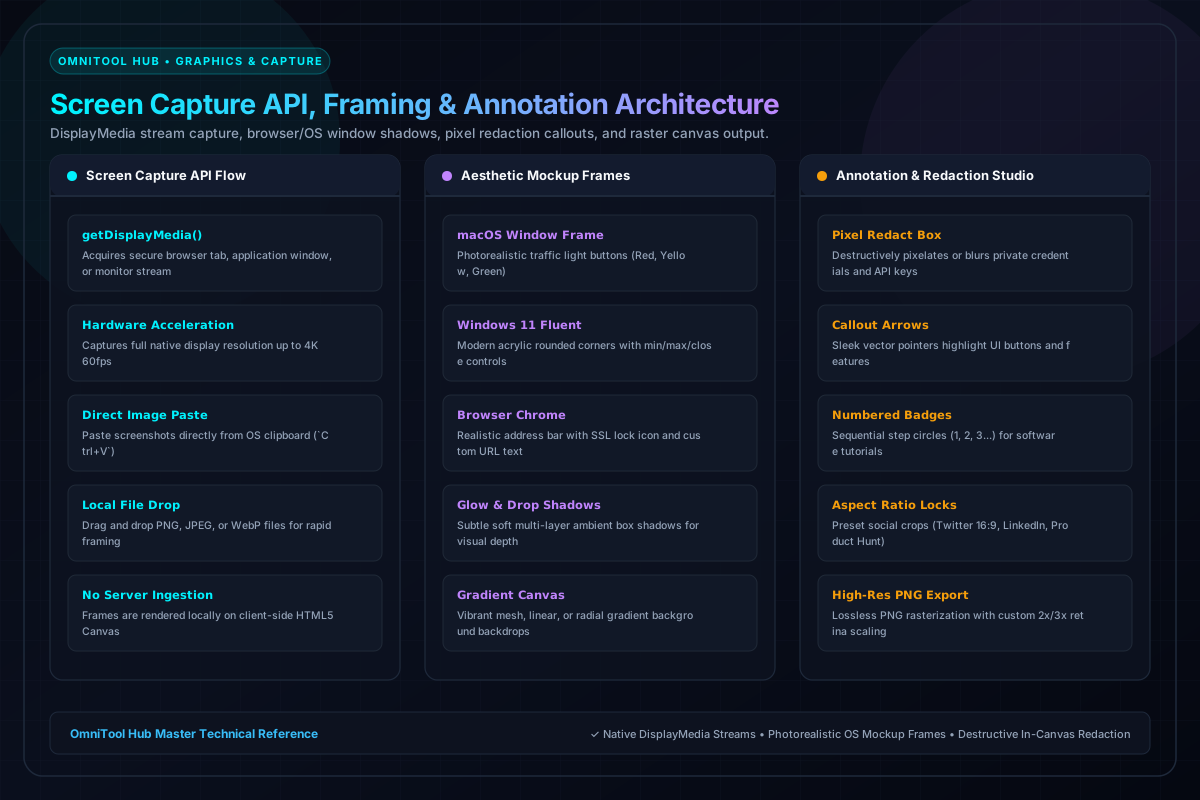
Studio & Markup Capabilities
Here is a detailed breakdown of the capabilities, algorithms, and configurations available within this tool suite:
Acquire any desktop monitor, active application window, or browser tab directly via `getDisplayMedia()`, or paste images from clipboard.
Wrap screenshots in macOS style with colorful traffic lights, Windows 11 Fluent frames, or clean browser headers with custom URLs.
Set adjustable canvas padding, rounded corners, multi-layer soft ambient box shadows, and vibrant mesh gradient backgrounds.
Draw sleek callout arrows, numbered step circles, text labels, and destructive pixelated redaction boxes over sensitive keys.
Step-by-Step Usage Guide
- Click **Capture Screen / Tab** to take a live snip, or paste an existing screenshot using `Ctrl+V`.
- Select your preferred window frame: **macOS Monterey**, **Windows 11**, or **Browser Chrome**.
- Choose a background gradient and adjust shadow blur and canvas padding.
- Add callouts, arrows, or redaction boxes to highlight features or obscure confidential data.
- Click **Export Image** to download high-resolution 2x retina PNG images ready for publication.